> ## Documentation Index
> Fetch the complete documentation index at: https://trigger-v3-trigger-api-redesign.mintlify.site/llms.txt
> Use this file to discover all available pages before exploring further.
# React hooks: Overview
> How to show the live status of Job Runs in your React app
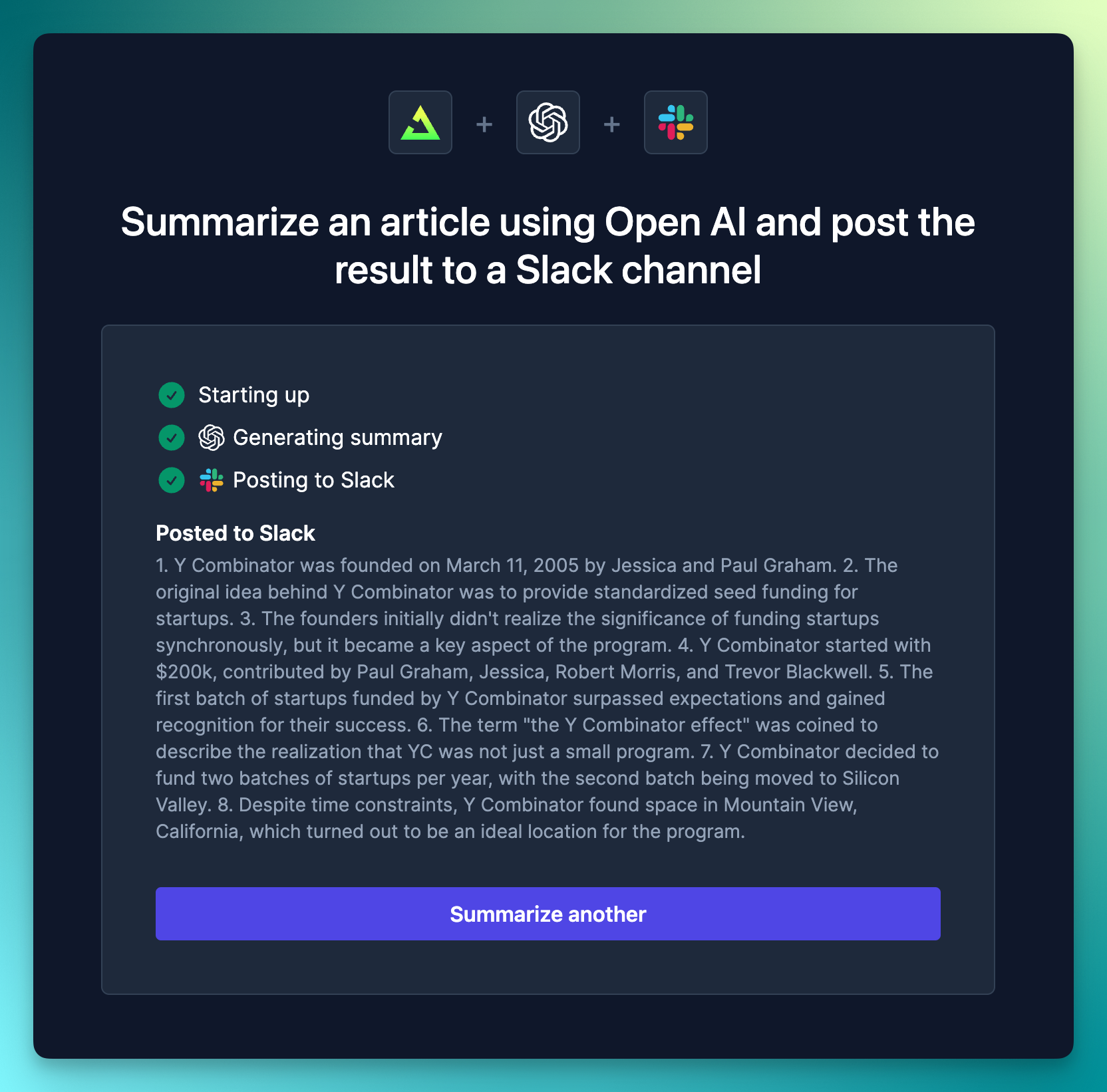
You can display the live progress of a Job Run to your users, including the status of individual tasks and the final output of the Run.
 ## Setting up your project for hooks
This guide assumes that your project is already setup and you have a Job running. If not, you should follow the [quick start guide](/documentation/quickstart) first.
Add the `@trigger.dev/react` package to your project:
```bash npm
npm install @trigger.dev/react@latest
```
```bash pnpm
pnpm install @trigger.dev/react@latest
```
```bash yarn
yarn add @trigger.dev/react@latest
```
In the Trigger.dev dashboard you should go to your Project and then the "Environments & API Keys" page.
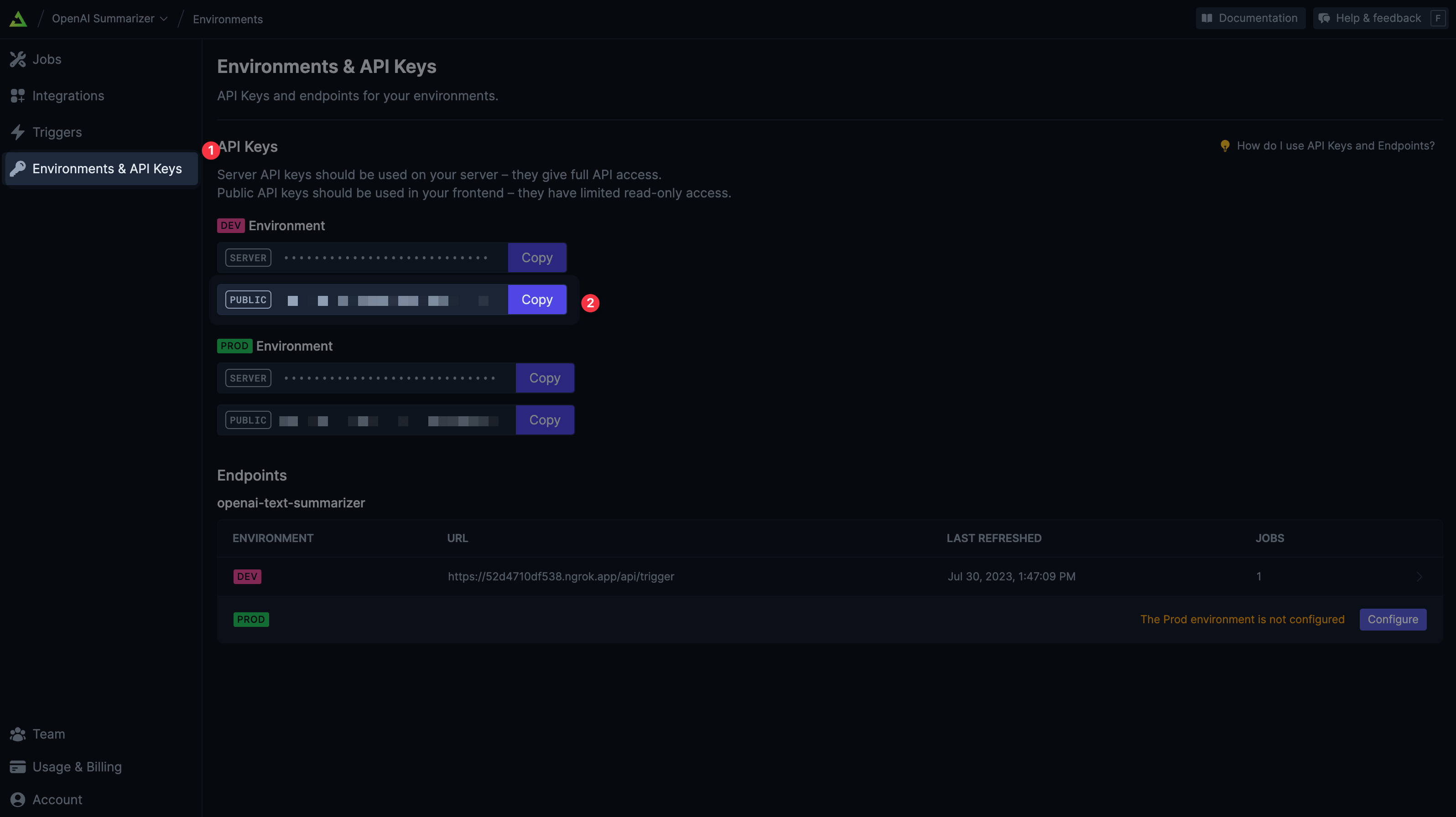
You should copy the `PUBLIC` API key for the dev environment.
A public API key is a key that can be used in the browser. It can only be used to read certain
data from the API and can not write data. This means that it can be used to get the status of a
Job Run, but not to start a new Job Run.
Add the `NEXT_PUBLIC_TRIGGER_PUBLIC_API_KEY` environment variable to your project. This will be used by the `TriggerProvider` component to connect to the Trigger API.
```sh .env.local
#...
TRIGGER_API_KEY=[your_private_api_key]
NEXT_PUBLIC_TRIGGER_PUBLIC_API_KEY=[your_public_api_key]
#...
```
Your private API key should already be in there.
`NEXT_PUBLIC_` is a special prefix that exposes the environment variable to your users' web browsers.
Add the `TRIGGER_PUBLIC_API_KEY` environment variable to your project. This will be used by the `TriggerProvider` component to connect to the Trigger API.
```sh .env
#...
TRIGGER_API_KEY=[your_private_api_key]
TRIGGER_PUBLIC_API_KEY=[your_public_api_key]
#...
```
You will need to pass this value from the server to the client. We recommend you do this in your Root loader.
The [TriggerProvider](/sdk/react/triggerprovider) component is a React Context Provider that will make the Trigger API client available to all child components.
Generally you'll want to add this to the root of your app, so that it's available everywhere. However, you can add it lower in the hierarchy but it must be above any of the hooks.
```tsx app/layout.tsx
export default function RootLayout({ children }: { children: React.ReactNode }) {
return (
{children}
);
}
```
```tsx app/root.tsx
//return the public key env var from the loader so it's available in the browser
export const loader = async ({ request }: LoaderFunctionArgs) => {
//...other code
const triggerPublicApiKey = env.TRIGGER_PUBLIC_API_KEY!;
return json({
//...other data
triggerPublicApiKey
});
}
//Your default export, i.e. the page component
export default function App() {
const {
//...other data
triggerPublicApiKey
} = useLoaderData();
return (
{/* wrap your outlet in this */}
);
}
```
## Two ways to report Run progress
**Automatic progress** – without writing additional code in your Job you can get updates on the overall run status and individual tasks inside the run.
**Explicit status** – add code to your Job that reports the status of the things you're doing. This gives you full flexibility for displaying progress in your UI.
Receive coarse updates without writing additional Job code
Add statuses to your Job code for fine-grained UI updates
## Setting up your project for hooks
This guide assumes that your project is already setup and you have a Job running. If not, you should follow the [quick start guide](/documentation/quickstart) first.
Add the `@trigger.dev/react` package to your project:
```bash npm
npm install @trigger.dev/react@latest
```
```bash pnpm
pnpm install @trigger.dev/react@latest
```
```bash yarn
yarn add @trigger.dev/react@latest
```
In the Trigger.dev dashboard you should go to your Project and then the "Environments & API Keys" page.

You should copy the `PUBLIC` API key for the dev environment.
A public API key is a key that can be used in the browser. It can only be used to read certain
data from the API and can not write data. This means that it can be used to get the status of a
Job Run, but not to start a new Job Run.
Add the `NEXT_PUBLIC_TRIGGER_PUBLIC_API_KEY` environment variable to your project. This will be used by the `TriggerProvider` component to connect to the Trigger API.
```sh .env.local
#...
TRIGGER_API_KEY=[your_private_api_key]
NEXT_PUBLIC_TRIGGER_PUBLIC_API_KEY=[your_public_api_key]
#...
```
Your private API key should already be in there.
`NEXT_PUBLIC_` is a special prefix that exposes the environment variable to your users' web browsers.
Add the `TRIGGER_PUBLIC_API_KEY` environment variable to your project. This will be used by the `TriggerProvider` component to connect to the Trigger API.
```sh .env
#...
TRIGGER_API_KEY=[your_private_api_key]
TRIGGER_PUBLIC_API_KEY=[your_public_api_key]
#...
```
You will need to pass this value from the server to the client. We recommend you do this in your Root loader.
The [TriggerProvider](/sdk/react/triggerprovider) component is a React Context Provider that will make the Trigger API client available to all child components.
Generally you'll want to add this to the root of your app, so that it's available everywhere. However, you can add it lower in the hierarchy but it must be above any of the hooks.
```tsx app/layout.tsx
export default function RootLayout({ children }: { children: React.ReactNode }) {
return (
{children}
);
}
```
```tsx app/root.tsx
//return the public key env var from the loader so it's available in the browser
export const loader = async ({ request }: LoaderFunctionArgs) => {
//...other code
const triggerPublicApiKey = env.TRIGGER_PUBLIC_API_KEY!;
return json({
//...other data
triggerPublicApiKey
});
}
//Your default export, i.e. the page component
export default function App() {
const {
//...other data
triggerPublicApiKey
} = useLoaderData();
return (
{/* wrap your outlet in this */}
);
}
```
## Two ways to report Run progress
**Automatic progress** – without writing additional code in your Job you can get updates on the overall run status and individual tasks inside the run.
**Explicit status** – add code to your Job that reports the status of the things you're doing. This gives you full flexibility for displaying progress in your UI.
Receive coarse updates without writing additional Job code
Add statuses to your Job code for fine-grained UI updates